Using the Pimoroni InkyFrame as a Google Calendar Display
After a year and a half of off-and-on work, I’ve finally gotten my E-Ink Calendar project in a working state. Since it took me so long, I wanted to document a bit about how it works and some of the things I learned while working on it. First, though, some explanation for why I started this project in the first place.
I have a large family—5 kids—with children ranging from their late teens to kindergarten age. With such a large family we have a lot of events on our calendar: doctor or dentist appointments, school events, after school event, etc. My spouse expertly uses a large whiteboard calendar to keep track of all the events, but one major struggle I’ve had is making sure the events we have in our shared Google calendar are easily visible to everyone (by everyone I mostly mean me).
I’ve been a dabbler of electronics projects for a while, so when I found the Pimoroni InkyFrame I wanted to see if I could use that to show our shared calendar on the E-Ink display. After getting the InkyFrame as a Christmas present, I got started thinking it’d take me perhaps a few months to get something working. Little did I know how much I’d have to learn along the way:
- C++
- CMake
- Managing C++ libraries using CMake
- Google Calendar API in Go
- Go Web development
I had originally hoped I could use MicroPython since I know Python fairly well, but after spending a few weeks trying things out, I decided I couldn’t quite do what I wanted with it. So instead, I decided I’d use C, since I said I was Trying out C a while back. Once I started digging into the details, though, I learned the InkyFrame libraries are all in C++ so I decided I’d have to switch from C and use C++ instead.
What the project does
With that backstory out of the way, lets talk about what the project itself does and how it works. The project is composed of 3 components:
- Home Hub—A Pimoroni InkyFrame 5.7" that displays my calendar
- Homebase—A Go web app that the Home Hub communicates with to render its calendar
- Google Calendar—A shared Google Calendar with my family that Homebase has API access to
Since the Home Hub is using a regular Raspberry Pi Pico W, the device has fairly limited memory and processing power. I haven’t hit the edges of memory with C++ but I definitely did so when using MicroPython. To ensure I don’t run into any problems, I wrote Homebase. Homebase is a Go Web App that I built after reading Alex Edward’s Let’s Go. Homebase was granted API Access to Google Calendar using Google’s quickstart guide with some modifications. It gathers the calendar events, processes them for display on the Home Hub and then sends back a custom JSON object that Home Hub uses to render its display.
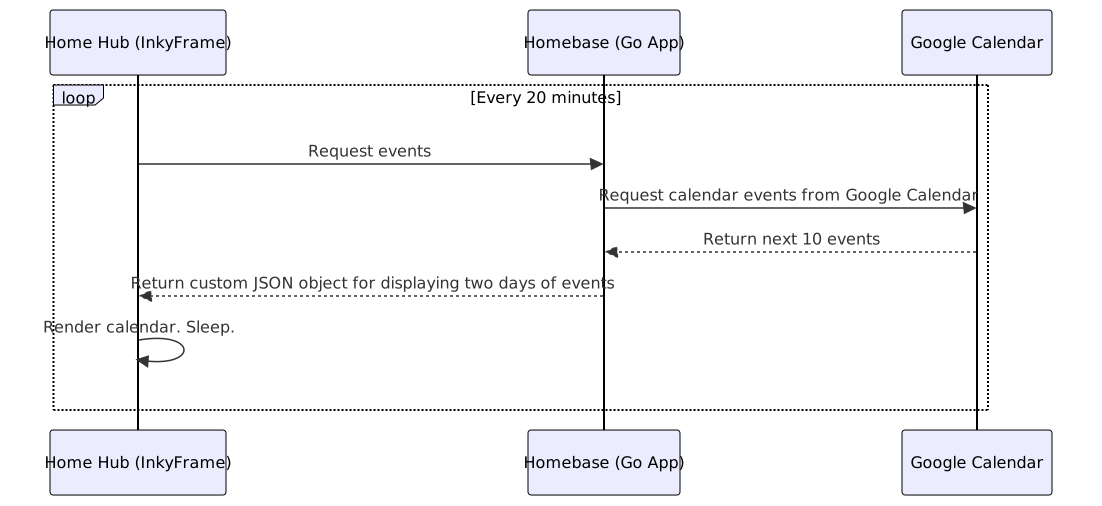
The overall flow goes like this:
- Home Hub calls the Homebase via HTTP
- Homebase calls the Google Calendar API, getting the 10 next events
- Homebase builds up a JSON object and returns that to Home Hub
- Home Hub renders the display based on the received JSON object
- Home hub then sleeps for 20 minutes
- After 20 minutes, Home Hub wakes up and repeats the process
Here’s the flow in diagram form:
The calendar in action
The end result of the process is both very exciting to me and also very mundane. The Home Hub renders two days worth of calendar events. I spent a while deciding how to best display each event on the E-Ink display since it has a size of 600 x 448 pixels. After some experimenting, I found the simple two column display worked best. You can see a simple example below:

In my testing I found I could display about five calendar events per day, which for us has been more than enough. The Homebase API does only return the events from when it was called, so if I do have days with more than five events, the remaining events will display as the ones earlier in the day are finished.
You might have also noticed that in the bottom right in a tiny font, the date and time. I added that as a debugging and troubleshooting step to see when the last time the display was updated. One of the amazing things about E-Ink is that they don’t need power once they’ve rendered, but that also means its easy to miss that the display hasn’t updated in a while!
Rough edges
I’ve hit a few rough edges on the project so far. The biggest one being that the way I’ve set up my API access to Google Calendar, I have to reauthenticate every week. I haven’t spent enough time to see if there is a way to fix it but it seems to require me to get my app validated by Google somehow. Honestly, though, its low enough effort to fix that I’m not sure I’ll be doing anything about that. For now, I updated the Home Hub so that it puts up a big error when I need to reauthenticate.

When I see the big red error screen, I log in again and things work for another week.
Running on battery
The InkyFrame kit I got came with a battery pack to run the display. While I can plug in my InkyFrame where I use it in my house, I wanted to see how the low power nature of the E-ink display held up. To that end, I grabbed some Eneloop batteries and plugged it in. The first week went great, but then I had drained the batteries which was… less good than I was hoping. Thinking that maybe I’d not charged the batteries, I put in a fresh set and tried again. Which gave me the exact same result, surprising I know.
With a little bit of digging, I realized that in my loop of events that I never turned off the WiFi chip. My initial hope was that when I put the Raspberry Pi Pico into its low power state, that it’d also take care of the WiFi which, in retrospect, it doesn’t. After updating my code to turn off WiFi once I’ve gotten my response back, I’ve been running the InkyFrame on batteries for a few weeks with no issues. I’ll see how long the three AAA batteries last before deciding whether or not I want to keep it set up that way. It is really nice to be able to pick up the Frame and move it if I want!
Inspiration
I woudn’t have been able to complete this project without finding Jaeheon Shim’s excellent inky-dashboard project. I was able to use his code as inspiration when writing my own. I didn’t end up using lvgl like his project, but his code was instrumental in helping me get the nlohmann::json library working and getting odds and ends of the Inky Frame itself going. So thank you so much to Jaeheon!
Wrapping up
I didn’t cover much in the way of technical details on this project so hopefully I’ll get around to other posts that go into some more detail about what I’ve learned. For now, I wanted to share what I’ve done since I had a lot of fun making it and hope others are inspired to try similar projects! As for the code, I haven’t published it anywhere yet but perhaps in the future I’ll put it up on Codeberg. If you’re interested in that, let me know on Mastodon or email me!